
INDHANN

INDHANN / 24 chapters · 48 illustrated pages

Opening readings. Busy shifts. A closing you can explain.

Learn one job at a time. Search, follow the steps, then compare the actual screen.

Start with opening checks →Product brochure ↗
INDHANNSTATION OWNER HANDBOOK

01 Start here

A working guide for your station

A busy forecourt. One day you can explain.

At opening, you check the nozzle readings. Before lunch, a tanker arrives. A regular customer takes fuel on credit; another splits a payment between cash and UPI. At closing, a small difference sends you back through slips, messages and memory. This illustrative station day is the thread running through this guide.

Follow the work, then check the result

Each chapter names the place to start, walks through an actual task, explains what a saved result means and shows an application screen. The screen data and worked prices are examples. Use your own measured quantities, applicable rates and verified payments.

  1. Prepare: account, Android installation, language, tanks, nozzles and opening values.
  2. Record: fuel sales, payment allocation, deliveries, lubricant sales and customer credit.
  3. Reconcile: collections, bank entries, receipts, passbooks and reports.
  4. Protect: export a backup and understand restore and interrupted entries.

Website and Android have different jobs

The website creates the owner account, manages plans and provides the authenticated APK download. Android holds the operating records. A customer can read a shared receipt or passbook PDF without your owner account. Website account and legal pages remain in English; this guide explains their steps in all three languages.

Read in sequence for your first working session, or use the chapter list to solve today’s task. Practise the examples in this guide without adding invented sales to your live station records.

INDHANNSTATION OWNER HANDBOOK

02 Website / Create account

Create the station account

Before the first shift, put the account in the owner’s control. An employee’s temporary email should not become the only way to recover station access.

Open www.indhann.in/register. While the main domain is unavailable, use Vercel website. Both use the same INDHANN account. Choose an email the owner controls.

Option 1: Continue with Google

  1. Choose Continue with Google, select the owner's Google account and complete Google's sign-in or consent screen. Google verifies the email; it does not fill in or verify your station details.
  2. Back in INDHANN, check the displayed email. Enter the Station Owner name, Fuel Station name, mobile number, actual address, city, state, PIN code and oil company. Dealer code is optional.
  3. Review the terms and privacy information and accept them. Choose Finish station setup. Correct highlighted fields and wait for the account to open.

No separate INDHANN password is required for Google sign-up. A Google sign-in alone does not complete station registration. An existing owner with completed setup goes straight to the account.

Option 2: Email and password

Google is optional. Fill the same station details, enter and confirm your email, and create and confirm a password of at least eight characters. Review and accept the terms, then choose Create account and start Trial. Keep your password private.

If sign-in or setup is interrupted

Try again with the same identity. After Google sign-in, use Finish station setup if offered. Cancelling Google's screen does not complete registration. Do not create another account to resume. On Android, choose the same Google account where Continue with Google is offered; if the button is missing, contact support about the supported release before using a Google-only account.

Drive backup is separate. Google sign-in uses your name and email. Connect Google Drive separately inside Android Backup and approve its file permission to enable daily backups over Wi-Fi or mobile data. Signing in with Google does not by itself back up or restore station records.

INDHANNSTATION OWNER HANDBOOK

Recognise the screen. Check your next step.

Website / Create account

The registered station identity is shown in Android after sign-in; registration takes place on the website.
The registered station identity is shown in Android after sign-in; registration takes place on the website.Real app layout · illustrative station recordsEnlarge app screen ↗

Your practice checklist

These checks help you learn. Ticking them does not save or verify any station record.

Check before you continue ↑
INDHANNSTATION OWNER HANDBOOK

03 Website / Account → Android app

Install the app and change phones

Your replacement phone is ready, but yesterday’s work is still on the old phone. Move a verified copy of the records as well as signing in.

  1. On an Android phone, sign in to the owner website and open the Android download section. Review the release version and checksum information, then request the private APK download.
  2. Open the APK from Downloads. If Android asks, allow installation for that browser or file manager. If your organisation restricts installation, contact its device administrator.
  3. Open INDHANN and sign in with the same owner account. Use Continue with Google where offered for a Google account, or the existing email/password method. If your version lacks Google sign-in, contact support about the supported release; do not create a second account. This phone becomes active automatically and replaces the previous phone. Ordinary sign-in needs no transfer approval.
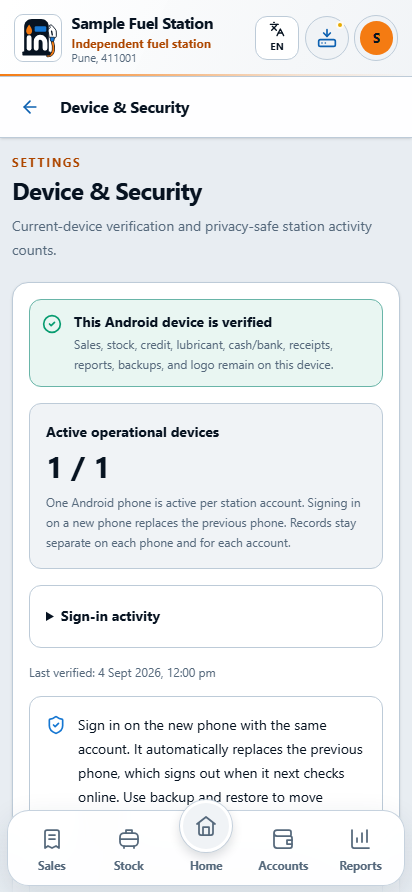
  4. Check Settings → Device & security, or Your active phone on the owner website. The active count is shown as 0 or 1.

What happens to the previous phone?

It signs out at its next online check, including when you reopen the app. An offline phone cannot learn about a replacement until it reconnects. Website sessions remain available. Local records are preserved; use a verified backup to move them before changing phones.

Using another account on this phone

Sign out, then sign in to the other account. Each account opens its own local records, settings and logo. Returning to the original account restores its saved workspace. Install the latest app before switching accounts.

Update or move?

For an update on the same phone, export a backup, download the new APK and install over the existing app. Keep the app installed to preserve records. For a different phone, restore your exported backup after sign-in (restore chapter). Sign-in alone copies no station records.

INDHANNSTATION OWNER HANDBOOK

Recognise the screen. Check your next step.

Website / Account → Android app

Device & Security shows the active-phone state and separate account-activity counts.
Device & Security shows the active-phone state and separate account-activity counts.Real app layout · illustrative station recordsEnlarge app screen ↗

Your practice checklist

These checks help you learn. Ticking them does not save or verify any station record.

Check before you continue ↑
INDHANNSTATION OWNER HANDBOOK

04 Profile → Settings

Make the app yours

A receipt should identify your station, and the person entering it should be able to read the screen comfortably. Set these basics before the forecourt gets busy.

Use the language selector at the top of the application to choose English, हिंदी or मराठी. The selected language applies to screens, forms and record views. English labels in this manual identify the same functions in the other languages.

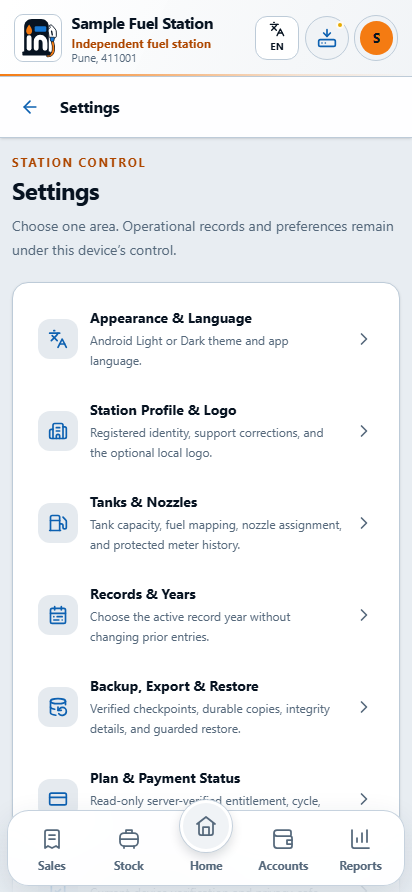
  1. Open the profile button, then Settings. Choose Appearance & language for Android appearance preferences.
  2. Choose Light or Dark. There is one unified Dark theme; an older AMOLED preference is treated as Dark. The website has its own independent Light/Dark setting.
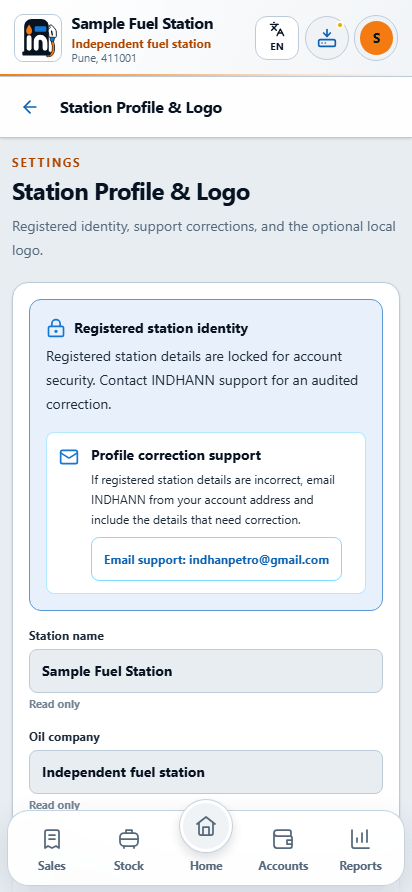
  3. Open Station profile & logo to review the registered identity. Verified identity corrections go through support; do not create a second account to change a spelling.
  4. Add the station's optional PNG logo when you want it on documents. Review the image. If no custom logo is set, documents use the INDHANN icon.
  5. Open Records & Years and select the year whose records you want to work with. This is a calendar record year, not an April-to-March financial year.

Other Settings sections

Tanks & nozzles contains equipment setup. Backup, export & restore protects and moves your records. Plan & payment status displays server-verified access. Device & security shows the active phone count and a separate history of sign-in activity.

INDHANNSTATION OWNER HANDBOOK

Recognise the screen. Check your next step.

Profile → Settings

The Settings hub groups eight areas without replacing the main navigation.
The Settings hub groups eight areas without replacing the main navigation.Real app layout · illustrative station recordsEnlarge app screen ↗

Your practice checklist

These checks help you learn. Ticking them does not save or verify any station record.

Check before you continue ↑
INDHANNSTATION OWNER HANDBOOK

05 Settings → Tanks & nozzles

Set up real tanks and nozzle meters

A hurried opening reading can make every later entry harder to reconcile. Walk the forecourt once with the actual tank and nozzle list before setting up the app.

A new workspace starts without invented equipment, stock or rates. Before recording sales, enter the physical equipment and opening readings you have verified at the station.

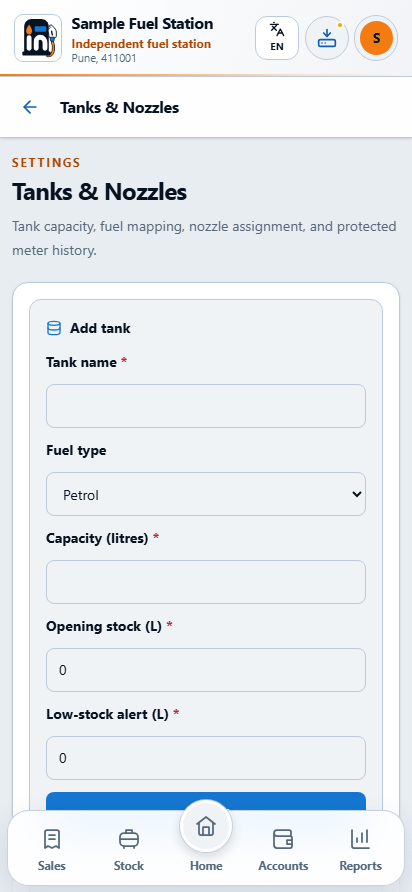
  1. Add each underground tank with a recognisable name, the correct fuel type and its actual capacity in litres. Keep separate tanks separate.
  2. Enter the verified starting stock when adding the tank; later changes use the separate stock-adjustment flow. Stock must not exceed capacity and cannot be negative. Record why you are setting the opening quantity.
  3. Add each dispensing nozzle and link it to the correct tank and fuel grade. Confirm the connection before saving: sales reduce the linked tank.
  4. Enter the nozzle's actual current meter reading as the starting point. This is a cumulative meter reading, not the litres sold in the next transaction.
  5. Review the saved tanks and nozzles, then set the actual fuel rates for the date you will enter.

Example

A petrol tank has 20,000 L capacity and verified starting stock of 14,000 L. A nozzle linked to that tank currently reads 125,000.00. Enter those as three different facts: capacity, stock and meter reading. Do not put 14,000 into the nozzle meter field.

If a field is highlighted, correct its value before saving. Wait for confirmation and verify the equipment appears before starting daily entries.

INDHANNSTATION OWNER HANDBOOK

Recognise the screen. Check your next step.

Settings → Tanks & nozzles

Tanks & Nozzles connects each dispensing point to its actual underground tank.
Tanks & Nozzles connects each dispensing point to its actual underground tank.Real app layout · illustrative station recordsEnlarge app screen ↗

Your practice checklist

These checks help you learn. Ticking them does not save or verify any station record.

Check before you continue ↑
INDHANNSTATION OWNER HANDBOOK

06 Home / Opening checks

Start the station day

The first vehicles are arriving. Check the starting position now so a wrong rate or nozzle is caught before the day’s records grow.

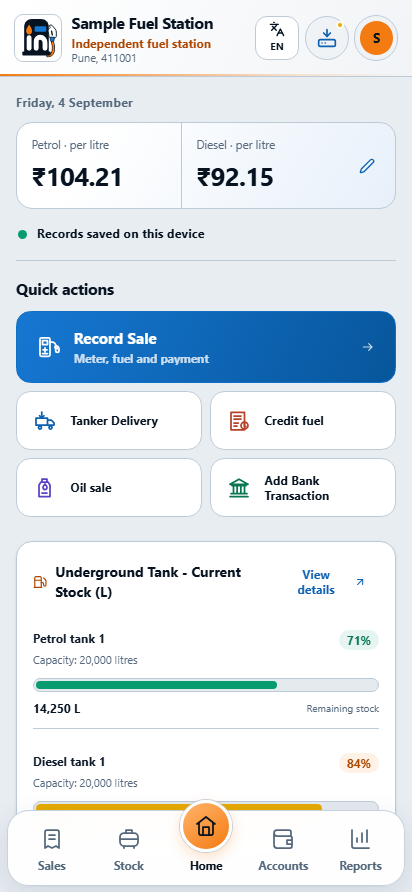
Home brings the current rates, quick actions and stock overview together. Before your first entry, confirm that the station name, selected record year, working date, equipment and stock match the work you are about to record.

  1. Review today's Petrol and Diesel rates. Use the edit control beside the rates to enter the actual selling prices for today.
  2. Check tank stock and capacity. The display is calculated from recorded entries; it is not a live tank sensor.
  3. Check nozzle starting readings against the last closing readings. Investigate a mismatch before adding another sale.
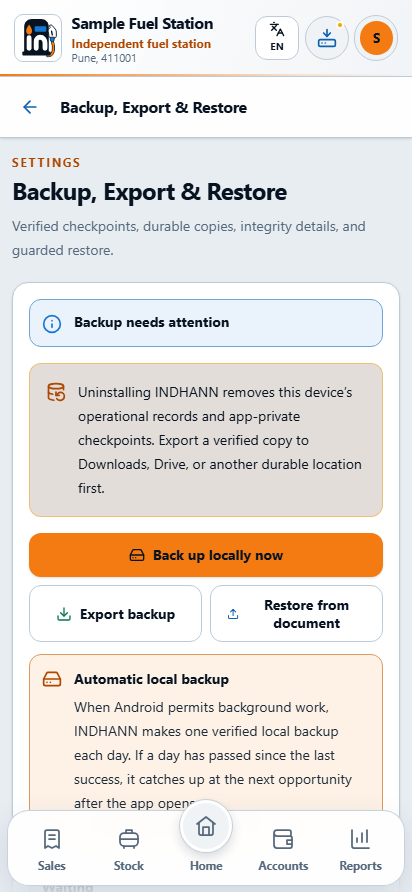
  4. Review the backup status. If a backup is due, create an owner-controlled copy before doing more work.
  5. Use the relevant quick action: Record Sale, Tanker Delivery, Credit fuel, Oil sale or Add Bank Transaction.

Rates are not sample values

The Home rate editor changes today’s rates. For a historical entry, check the applicable rate shown in the sale form before saving. If a sale cannot find a configured nozzle or rate, complete that setup first. Do not reuse a price from the screenshot in this guide or use a made-up value simply to get through the form.

The bottom navigation groups work into Sales, Stock, Home, Accounts and Reports. The raised Home control takes you back to this opening overview.

INDHANNSTATION OWNER HANDBOOK

Recognise the screen. Check your next step.

Home / Opening checks

Home brings today’s rates, actions and recorded stock into one working view.
Home brings today’s rates, actions and recorded stock into one working view.Real app layout · illustrative station recordsEnlarge app screen ↗

Your practice checklist

These checks help you learn. Ticking them does not save or verify any station record.

Check before you continue ↑
INDHANNSTATION OWNER HANDBOOK

07 Home → Record Sale / Sales

Record a fuel sale from the meter

A vehicle leaves, the next driver is waiting, and the meter has moved. Capture the actual dispensing event once, then check the saved receipt.

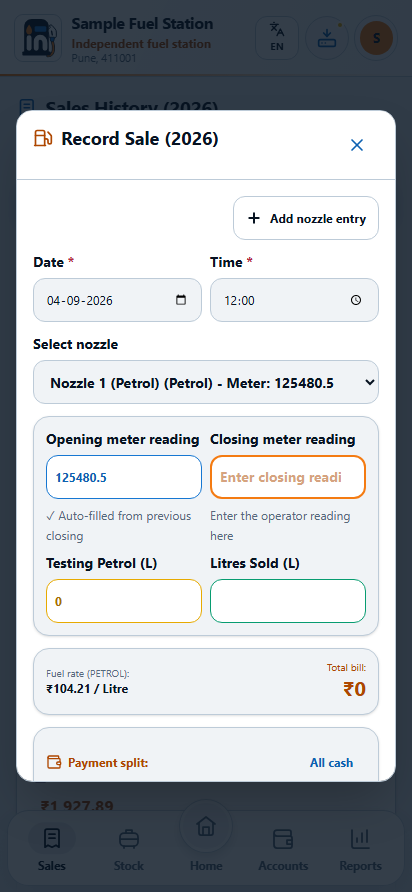
  1. Open Record Sale and check the date and time. Choose the actual nozzle used.
  2. Review Opening meter reading. It is normally filled from the previous closing reading. Enter the actual Closing meter reading.
  3. Enter testing fuel only when testing really occurred and was returned to the selected tank. Review the sales litres and applicable fuel rate.
  4. Review the total bill. Enter the payment allocation for the money received and any credit given (payment allocation).
  5. Add the customer/vehicle information required for your record. For a credit amount, select a saved Credit Customer.
  6. Check the staged-entry list, then choose Save sale and open receipt or the plural action for several entries. Wait until the save succeeds before sharing the receipt.

Worked example: one 10 L sale

Opening meter 1,000.00, closing meter 1,010.00, testing 0 L and rate ₹100/L gives 10 L and ₹1,000. If paid in cash, allocate ₹1,000 to Cash. The example rate is illustrative, not a recommended fuel price.

A save failure keeps the unfinished values for correction. Check stock, readings and payments, then retry the retained entry. Inspect history if you are unsure whether a prior action succeeded; do not repeatedly recreate the sale.

INDHANNSTATION OWNER HANDBOOK

Recognise the screen. Check your next step.

Home → Record Sale / Sales

The real sale form begins with the date, nozzle and readings; scroll to continue.
The real sale form begins with the date, nozzle and readings; scroll to continue.Real app layout · illustrative station recordsEnlarge app screen ↗

Your practice checklist

These checks help you learn. Ticking them does not save or verify any station record.

Check before you continue ↑

Try the meter calculation

Practice only. No entry is saved in INDHANN. Example rates are not current fuel prices.

Closing − opening − returned testing = billable litres. Litres × rate = sale value.

INDHANNSTATION OWNER HANDBOOK

08 Sales / Payment split and staged entries

Allocate payments and testing correctly

The customer pays partly in cash, partly by UPI and asks you to carry the rest. Keep the sale value and each source of payment visible together.

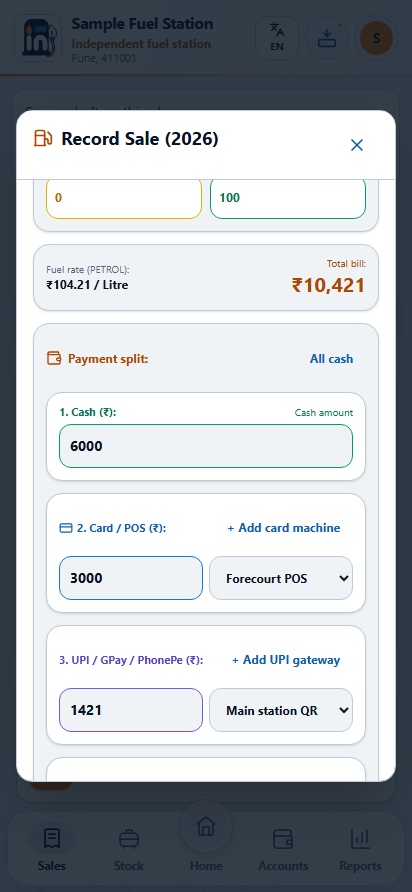
The payment split must equal the sale total. INDHANN records how the customer paid; entering Card or UPI does not charge a card or move money through a payment provider.

  1. Choose All cash only when the full amount was paid in cash. Otherwise enter each actual amount.
  2. For Card / POS, select the actual card machine label. Use Add card machine if the label is missing.
  3. For UPI, select the recorded gateway/app label. Add a label only for a method your station actually uses.
  4. For Credit, enter the unpaid amount and select the saved Credit Customer. Typing another name invalidates a previous customer selection; select the intended saved customer again.
  5. Check the total of Cash + Card + UPI + Credit against the bill before saving.

Worked example: split payment

A ₹2,000 sale paid ₹500 cash, ₹1,200 UPI and ₹300 credit must show those three allocations and the saved customer responsible for ₹300. A payment received later belongs in that customer's collection flow, not a second fuel sale.

Testing and several nozzles

If the meter difference is 15 L and 5 L was testing fuel returned to the tank, review that only 10 L is billed. Use Add next nozzle entry for another real nozzle entry. Review each row and the combined litres/amount before saving the batch. Remove an unintended staged row before saving; a partially started invalid row must be corrected or removed.

INDHANNSTATION OWNER HANDBOOK

Recognise the screen. Check your next step.

Sales / Payment split and staged entries

The scrolled sale form shows payment allocation; its example figures differ from the worked lesson.
The scrolled sale form shows payment allocation; its example figures differ from the worked lesson.Real app layout · illustrative station recordsEnlarge app screen ↗

Your practice checklist

These checks help you learn. Ticking them does not save or verify any station record.

Check before you continue ↑
INDHANNSTATION OWNER HANDBOOK

09 Sales → Register / Receipt / Edit

Find, correct and reissue a sale

A driver asks for yesterday’s receipt, or you notice a wrong entry after the rush. Find the saved record before making another one.

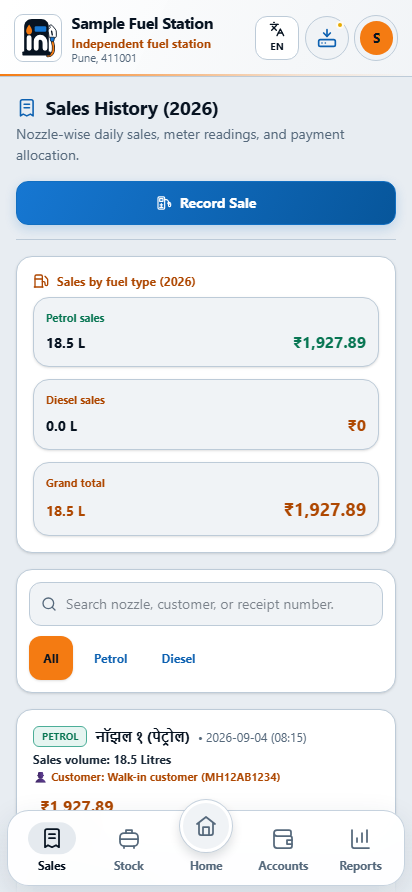
  1. Open Sales and select the correct record year and month. Search by nozzle, customer or receipt number.
  2. Use the history pages to locate the record. Search applies to the selected year's records before paging; the first page is not the whole register.
  3. Open the receipt action for the saved sale. Check the date, number, fuel, litres, rate and payment split before saving, sharing or printing.
  4. If a value is wrong, use Edit sale. Correct only the actual mistake and review the resulting totals. Later nozzle readings and linked stock/credit history can restrict a change.
  5. Save the correction and reopen the receipt. If the original document was already sent, tell the recipient which corrected document replaces it.

Deleting an incorrect entry

Use Delete sale only when the record itself should not exist. Read the confirmation: the supported action reverses linked stock and credit effects. Do not delete a valid sale just because a customer pays later. Export a backup before substantial historical corrections.

If an edit is rejected, read the highlighted field or history constraint. Do not alter a later meter or tank quantity merely to force the edit through. Contact support with the action and error text if you cannot reconcile the sequence.

INDHANNSTATION OWNER HANDBOOK

Recognise the screen. Check your next step.

Sales → Register / Receipt / Edit

The sales register keeps saved records separate from an unfinished entry.
The sales register keeps saved records separate from an unfinished entry.Real app layout · illustrative station recordsEnlarge app screen ↗

Your practice checklist

These checks help you learn. Ticking them does not save or verify any station record.

Check before you continue ↑
INDHANNSTATION OWNER HANDBOOK

10 Home → Tanker Delivery / Stock

Record an incoming tanker delivery

The tanker arrives while sales continue. The key decision is which compartment entered which underground tank; total tanker litres alone cannot answer that.

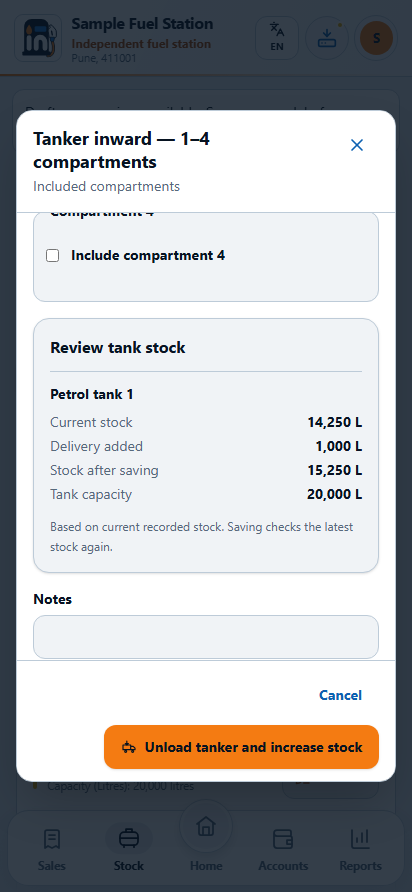
Record a delivery when fuel is actually received into the station tanks. Include any 1–4 filled compartments. Compartment 1 starts included; select the other filled compartments and leave empty ones excluded. Every included compartment needs positive litres and a matching destination tank. Only included quantities contribute to totals, stock review and the saved delivery.

  1. Open Tanker Delivery. Enter the actual date, time and available tanker/invoice details shown in the form.
  2. Choose the destination tank for each delivered fuel quantity. If the load has compartments, enter each compartment against the correct tank rather than assigning the whole tanker to one tank.
  3. Enter litres received from your verified delivery record. Review the displayed before / added / after stock for affected tanks.
  4. Check that the final stock fits within tank capacity. Resolve an incorrect tank mapping or quantity before saving.
  5. Save once and wait for confirmation. Find the delivery in Stock history, check its quantities and keep the original delivery document.

Worked example

A tank starts at 8,000 L and receives 4,000 L. Expected recorded stock is 12,000 L before subsequent sales or corrections. If another 2,000 L compartment went into a different tank, record it against that tank, not as 6,000 L into the first.

Delivery totals and stock values reflect this phone's records. A delivery entered only on a second phone is not automatically visible here.

INDHANNSTATION OWNER HANDBOOK

Recognise the screen. Check your next step.

Home → Tanker Delivery / Stock

The tanker form reviews the effect of entered compartments on each tank before saving.
The tanker form reviews the effect of entered compartments on each tank before saving.Real app layout · illustrative station recordsEnlarge app screen ↗

Your practice checklist

These checks help you learn. Ticking them does not save or verify any station record.

Check before you continue ↑
INDHANNSTATION OWNER HANDBOOK

11 Stock / Tank details / Adjust stock

Review and correct stock

The measured tank quantity differs from the screen. First trace the recorded movements, then document a verified correction with its reason.

Stock is built from opening quantities and recorded movements. Compare it with your physical measurements and source documents. A percentage bar is a calculated overview, not automatic tank telemetry.

  1. Open Stock or the tank's View details action. Confirm the selected tank, fuel type, capacity and current recorded litres.
  2. Review deliveries, sales and testing before assuming the quantity needs correction.
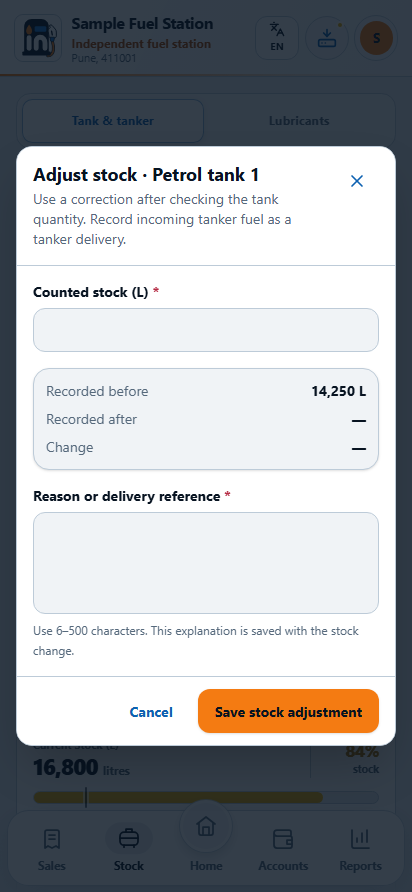
  3. When a verified correction is necessary, open the stock-adjustment action. Enter the measured resulting stock and a specific reason.
  4. Review the before quantity, after quantity and difference. Save only if they describe the intended correction.
  5. Check the adjustment history. The journal records the before/after/delta alongside the stock change.

Example

Recorded stock is 9,500 L and the verified corrected quantity is 9,450 L. Enter the resulting 9,450 L and a reason such as a documented measurement correction. The adjustment is -50 L. Do not enter -50 as the resulting stock.

Low-stock warning

Set the warning threshold to a useful value for the tank. An explicit zero threshold is supported. A low-stock warning does not say whether the database save succeeded; read the separate save state.

INDHANNSTATION OWNER HANDBOOK

Recognise the screen. Check your next step.

Stock / Tank details / Adjust stock

Stock adjustment names the resulting quantity and the reason for a correction.
Stock adjustment names the resulting quantity and the reason for a correction.Real app layout · illustrative station recordsEnlarge app screen ↗

Your practice checklist

These checks help you learn. Ticking them does not save or verify any station record.

Check before you continue ↑
INDHANNSTATION OWNER HANDBOOK

12 Stock / Lubricants

Create a lubricant product and restock it

A carton of oil arrives with several loose bottles. Count the packaging correctly before selling from it.

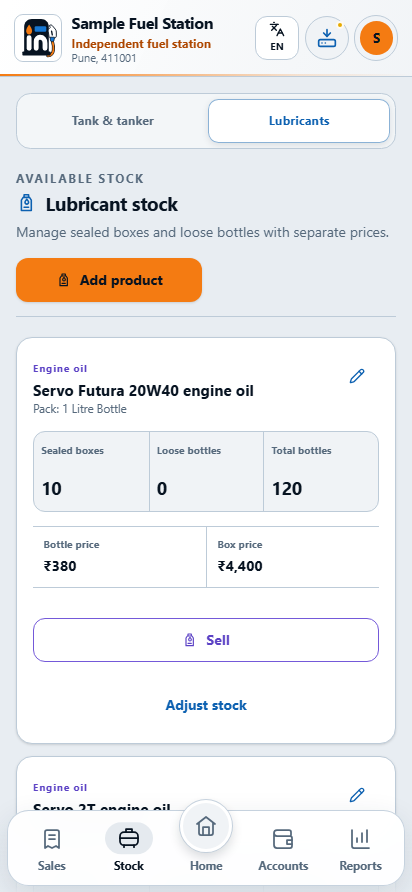
Oil products are counted in boxes and individual units. A one-litre bottle is one unit of stock; its pack size does not turn it into a fuel-sale litre.

  1. Open Stock → Lubricants and add the actual product. Enter its name, category and pack size so similar products are distinguishable.
  2. Enter the number of boxes, units per box and any loose units. All counts must be whole numbers; units per box must be positive.
  3. Set the actual selling price per unit and per box. These are separate fields: check both, especially when the box price includes your station’s discount.
  4. Save and verify the total stock and package details. When editing product details later, use the separate stock-adjustment action to change quantities.
  5. For a delivery, choose Stock received and enter Units received. For a measured correction, choose Count correction and enter Counted stock. Add a reason or delivery reference of 6–500 characters, then review before, after and change.

Worked example: cartons and loose bottles

Two boxes with six bottles each, plus three loose bottles, means 15 units. Receiving eight more bottles makes 23 units: in Stock received, enter 8; in Count correction, a verified resulting count of 23 is entered as 23. Read the field label before saving. A per-bottle price of ₹350 and a per-box price of ₹2,000 are two distinct selling prices.

A missing or invalid count should be corrected in the retained form. Confirm the saved product appears before selling from it; a product name alone does not establish available stock.

INDHANNSTATION OWNER HANDBOOK

Recognise the screen. Check your next step.

Stock / Lubricants

Lubricant stock distinguishes boxes and loose individual units.
Lubricant stock distinguishes boxes and loose individual units.Real app layout · illustrative station recordsEnlarge app screen ↗

Your practice checklist

These checks help you learn. Ticking them does not save or verify any station record.

Check before you continue ↑
INDHANNSTATION OWNER HANDBOOK

13 Home → Oil sale

Record a lubricant sale

A customer adds two oil bottles to a fuel purchase. Record the packaged product in its own stock flow so bottles do not become fuel litres.

  1. Open the oil-sale action, or choose a product’s sale action in Stock → Lubricants. Confirm the product and pack size.
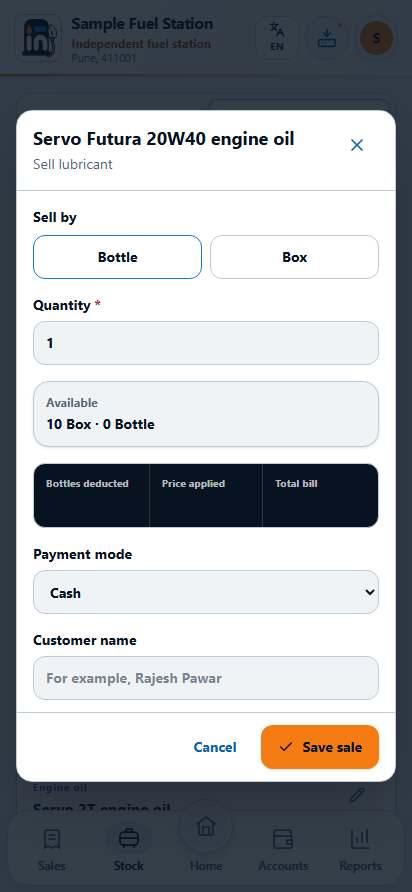
  2. Choose Bottle or Box. Enter the whole number sold in that mode. Review the available boxes and loose bottles.
  3. Read total units, the applied price and the total bill. A box sale uses the configured box size and box price; do not treat a box as one bottle.
  4. Select the actual payment mode and enter the customer name if needed. The sale uses the phone’s current local date and time; this form does not offer a date/time editor.
  5. Save once. Check that the sale appears in lubricant history and that the stock falls by the total individual units sold.

Worked example: two ways to sell

Two bottles at ₹350 each give ₹700 and reduce stock by two units. One six-bottle box priced at ₹2,000 gives ₹2,000 and reduces stock by six units. Check the mode before saving: “2 boxes” in this setup means twelve bottles.

Check the saved history

Search by product/customer and check the selected record year. If saving was interrupted, look for the record before repeating it. The lubricant screen does not offer an individual PDF receipt action; use its saved history to review the sale.

INDHANNSTATION OWNER HANDBOOK

Recognise the screen. Check your next step.

Home → Oil sale

The sale mode controls whether the quantity means bottles or boxes.
The sale mode controls whether the quantity means bottles or boxes.Real app layout · illustrative station recordsEnlarge app screen ↗

Your practice checklist

These checks help you learn. Ticking them does not save or verify any station record.

Check before you continue ↑
INDHANNSTATION OWNER HANDBOOK

14 Accounts / Credit Customers

Add a Credit Customer

Two customers have similar names. Their vehicle and contact details help you place each credit entry against the right saved account.

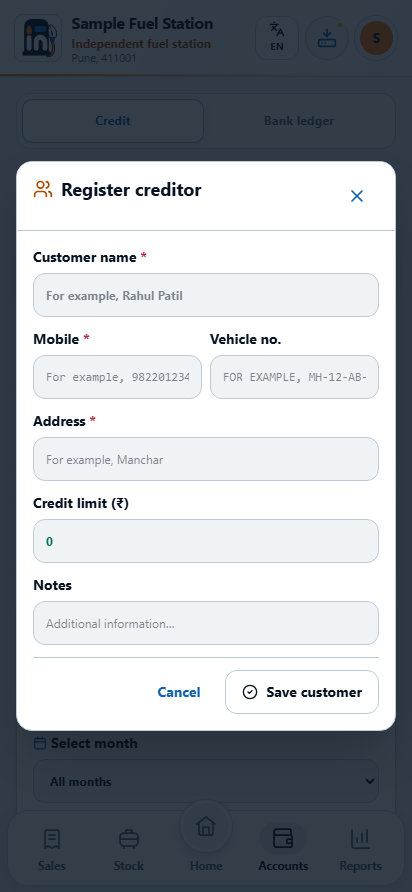
A Credit Customer is a person or business that can owe your station money. Create a saved customer before assigning fuel credit. A typed name alone is not a saved customer selection.

  1. Open the Credit Customer area in Accounts and choose the add action. You can also add a customer from the fuel-sale credit selector.
  2. Enter a recognisable customer name, valid mobile number and address. Include the vehicle number requested by the form and a credit limit if applicable.
  3. Check for an existing customer first. A duplicate mobile or vehicle can be rejected to prevent splitting the same customer's balance across records.
  4. Save the customer. Then select that saved customer in the transaction you are entering.
  5. Open the customer's record and verify the name and contact/vehicle details before recording credit.

Correct selection matters

If you change text after selecting a customer, select the intended saved customer again. The app clears a stale selection to avoid charging one customer while displaying another name.

Use the registered contact information when sharing a statement, but review the recipient in the Android share app yourself. Do not send a customer's passbook to a similarly named contact.

INDHANNSTATION OWNER HANDBOOK

Recognise the screen. Check your next step.

Accounts / Credit Customers

Customer details help distinguish similar names before fuel credit is recorded.
Customer details help distinguish similar names before fuel credit is recorded.Real app layout · illustrative station recordsEnlarge app screen ↗

Your practice checklist

These checks help you learn. Ticking them does not save or verify any station record.

Check before you continue ↑
INDHANNSTATION OWNER HANDBOOK

15 Accounts / Credit fuel and collections

Record credit and money received

Fuel was supplied in the morning and part of the money arrives in the evening. Record the charge and the later collection as two different events.

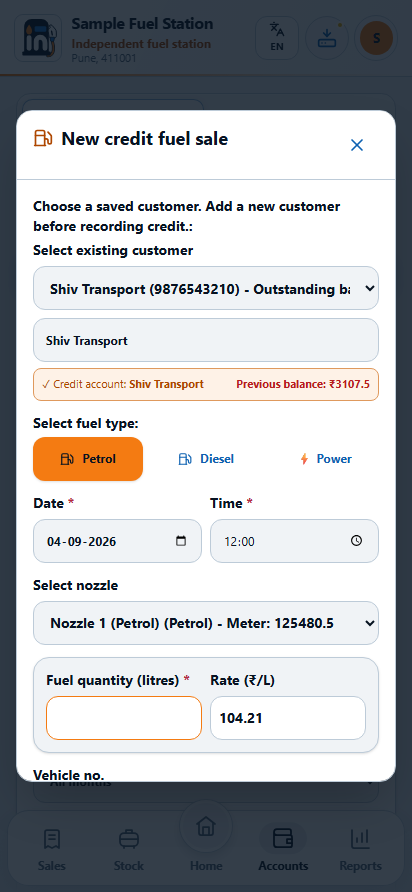
Fuel given on credit increases the customer's amount owed. A payment received reduces it. These are separate events; recording the fuel again when the customer pays creates an incorrect extra sale.

  1. For nozzle-meter sales, enter the sale through Record Sale and allocate the unpaid portion to Credit, selecting the saved customer.
  2. When using the dedicated Credit fuel action, select the saved customer, actual fuel, quantity/rate and other requested details. Check whether this is the event you already entered through the fuel-sale flow; record the same event only once.
  3. Review the customer, date, vehicle and amount before saving.
  4. When money is received later, open that customer's collection/payment action. Enter the actual amount, date and relevant payment/reference details.
  5. Save the collection and inspect the new balance and history entry.

Worked example

A customer receives ₹1,000 of fuel on credit, then pays ₹400 later. The history should show a ₹1,000 charge and a ₹400 collection, with ₹600 remaining from those events. Do not enter another ₹400 fuel sale for the collection.

If the intended customer is missing, close or keep the unfinished entry, create the correct saved customer and return. Check the restored selection before saving.

INDHANNSTATION OWNER HANDBOOK

Recognise the screen. Check your next step.

Accounts / Credit fuel and collections

The dedicated fuel-credit form starts from a selected saved customer.
The dedicated fuel-credit form starts from a selected saved customer.Real app layout · illustrative station recordsEnlarge app screen ↗

Your practice checklist

These checks help you learn. Ticking them does not save or verify any station record.

Check before you continue ↑
INDHANNSTATION OWNER HANDBOOK

16 Accounts → Customer → History

Share a customer passbook

A regular customer asks how the amount due was reached. Share the dated charges and collections that explain it.

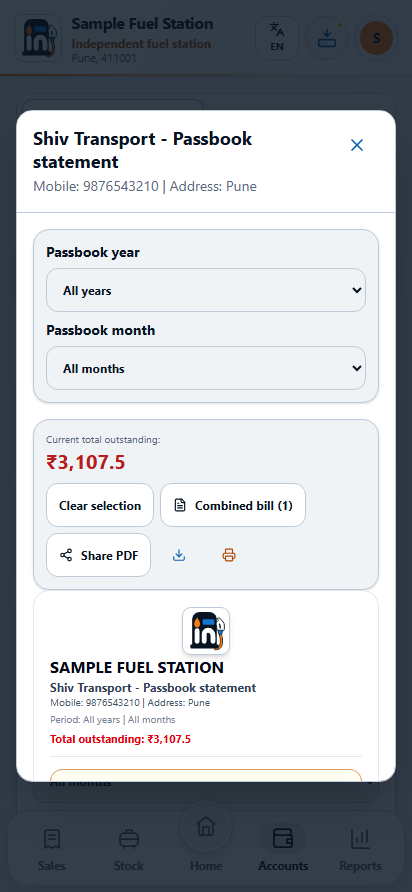
  1. Open Accounts, choose the saved Credit Customer and open their history/passbook.
  2. Check the customer identity and selected year or period. Use search/history pages to inspect the entries that explain the balance.
  3. Choose the PDF/passbook export action. The export uses the complete selected history, not just the rows visible on the first page.
  4. Wait for the document-ready result. Open the PDF and review its customer name, period, entries, totals and final balance.
  5. Use Save or Share and choose the correct recipient. Confirm completion in the target app; opening the share sheet alone does not prove delivery.

What to tell the customer

Explain the period covered, which lines are fuel/credit charges and which are payments received. Ask the customer to quote the relevant date or receipt number when disputing an entry. They can read the shared PDF without your owner login.

If an expected entry is missing, first check the selected year, date and customer. A record entered only on another phone will not appear automatically. If the PDF was created before a correction, regenerate it from the corrected history and identify the replacement to the customer.

INDHANNSTATION OWNER HANDBOOK

Recognise the screen. Check your next step.

Accounts → Customer → History

The customer passbook explains the selected history through charges and collections.
The customer passbook explains the selected history through charges and collections.Real app layout · illustrative station recordsEnlarge app screen ↗

Your practice checklist

These checks help you learn. Ticking them does not save or verify any station record.

Check before you continue ↑
INDHANNSTATION OWNER HANDBOOK

17 Home → Add Bank Transaction / Accounts

Keep the internal bank register

The cash is deposited after lunch. Record that bank movement once; the fuel sale that earned it is already in the sales register.

The bank register records station deposits and withdrawals. It does not connect to the bank, transfer money or prove settlement. Match entries against your bank records separately.

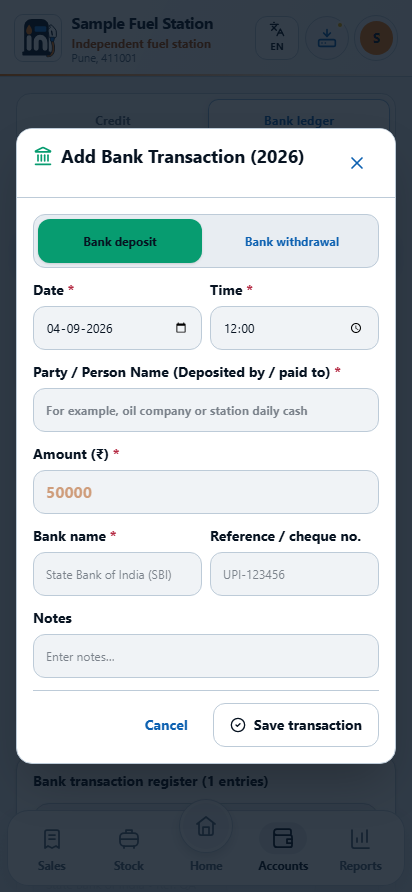
  1. Open Add Bank Transaction. Choose Deposit (CREDIT) or Withdrawal (DEBIT) according to the actual movement.
  2. Enter the date and time, the party (deposited by or paid to), the positive amount and the bank name.
  3. Add a reference/cheque number and notes when available. Use a note that will help you identify the event during reconciliation.
  4. Choose Save transaction. Correct highlighted fields if required; wait for the saved result.
  5. Review the transaction in the register and compare total deposits, withdrawals and net balance for the selected period.

Example

Recording a ₹10,000 cash deposit into the station's bank account is an internal bank entry. It should not be added as another ₹10,000 fuel sale. A withdrawal is not automatically a supplier invoice.

Find or correct an entry

Search by party, bank or receipt number and choose the relevant year/month. Use only the correction/delete actions offered for the record. Read the confirmation before deletion and check the revised register totals afterwards.

INDHANNSTATION OWNER HANDBOOK

Recognise the screen. Check your next step.

Home → Add Bank Transaction / Accounts

The bank form records an internal deposit or withdrawal, with source details.
The bank form records an internal deposit or withdrawal, with source details.Real app layout · illustrative station recordsEnlarge app screen ↗

Your practice checklist

These checks help you learn. Ticking them does not save or verify any station record.

Check before you continue ↑
INDHANNSTATION OWNER HANDBOOK

18 Reports / Select period / Export

Review the day and export reports

At closing, the cash drawer, card slips and UPI records are in front of you. Review the same period in each register before comparing the totals.

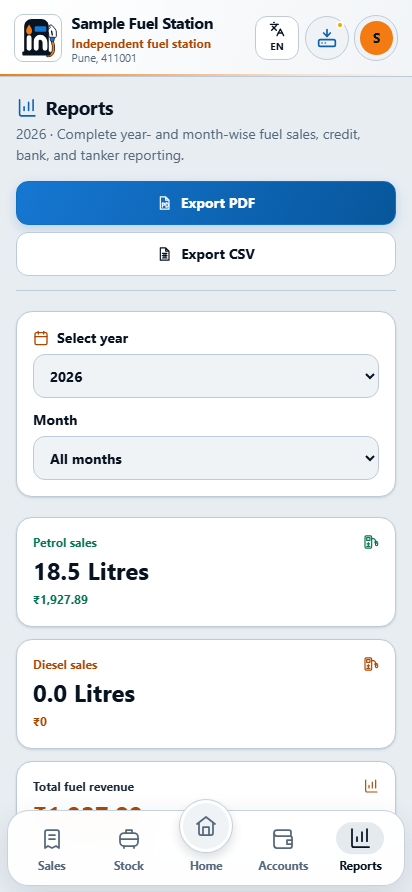
  1. Open Reports and choose the record year and month. Use All months for the whole selected calendar year.
  2. Review Petrol and Diesel litres and amounts. POWER/premium petrol is grouped with petrol. Compare these with saved fuel sales for the same period.
  3. Compare Cash, Card, UPI and Credit allocations with the corresponding sales and actual collection evidence. Recording UPI does not prove bank settlement.
  4. Review customer credit/collections, tanker inward and bank deposits/withdrawals in their separate sections. Follow an unexpected amount back to its source register.
  5. Choose Export PDF for reading or Export CSV for spreadsheet review. Open the file and check station, year and month before sharing.

Worked example: a total has a meaning

A ₹2,000 fuel sale split into ₹500 cash, ₹1,200 UPI and ₹300 credit has ₹2,000 sales value. Only ₹1,700 is recorded as immediately received through cash and UPI. A later ₹100 credit collection reduces the debt; it does not add another ₹100 of fuel sales.

Compare like with like

A register page can show only 25 rows while its selected-period export includes the full matching history. Compare the same year, month and filters. Lubricant sales are reviewed in their own history; this report’s fuel litres and fuel revenue should not be read as bottle quantities or a complete profit statement.

INDHANNSTATION OWNER HANDBOOK

Recognise the screen. Check your next step.

Reports / Select period / Export

Reports summarise saved fuel, credit, tanker and bank records for the chosen period.
Reports summarise saved fuel, credit, tanker and bank records for the chosen period.Real app layout · illustrative station recordsEnlarge app screen ↗

Your practice checklist

These checks help you learn. Ticking them does not save or verify any station record.

Check before you continue ↑
INDHANNSTATION OWNER HANDBOOK

19 Saved record → Receipt / PDF / Share

Create a new document

A driver needs a receipt and your accountant needs a period report. Choose the saved source that matches the document they actually need.

Start from the saved record that the recipient needs. INDHANN generates documents from records; it does not provide a blank document editor.

DocumentWhere to begin
Fuel receiptSave the sale, or open its Receipt action in Sales.
Daily sales slipHome → Daily Sales → Print slip.
Customer passbookAccounts → saved Credit Customer → history and PDF export.
Period reportReports → year/month → Export PDF or Export CSV.
Bank receiptOpen the saved bank record’s Receipt action.
  1. Review the saved source: customer, date, receipt number, quantity and amount. For a report, check the selected period.
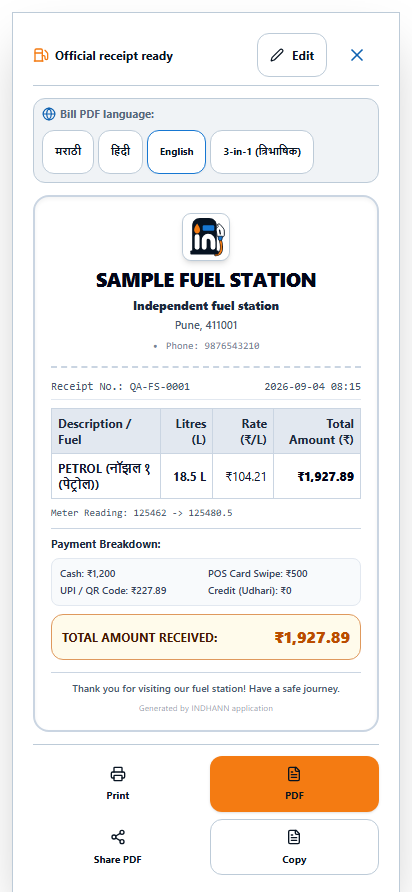
  2. Choose the document action and wait for the file to be prepared. Open it and inspect the station identity, logo, table and totals.
  3. Choose Save or share PDF where offered. Select a folder or Android app and complete its final Save/Send step.
  4. For printing, use the available print control or open the PDF in a compatible viewer. Select the actual printer and paper size.

The optional supported station PNG appears on documents; otherwise the INDHANN icon is used. A receipt/PDF/CSV is a reading copy and cannot restore the operating database. Tanker and lubricant histories currently have no individual receipt action. Keep the original backup separately for recovery.

INDHANNSTATION OWNER HANDBOOK

Recognise the screen. Check your next step.

Saved record → Receipt / PDF / Share

A fuel receipt is generated from a saved sale, with its actual quantities and payment allocation.
A fuel receipt is generated from a saved sale, with its actual quantities and payment allocation.Real app layout · illustrative station recordsEnlarge app screen ↗

Your practice checklist

These checks help you learn. Ticking them does not save or verify any station record.

Check before you continue ↑
INDHANNSTATION OWNER HANDBOOK

20 Settings → Backup, export & restore

Create a recoverable backup

The entries are saved, but a lost phone could still take the only copy. End the working day with a recovery file you can find outside the app.

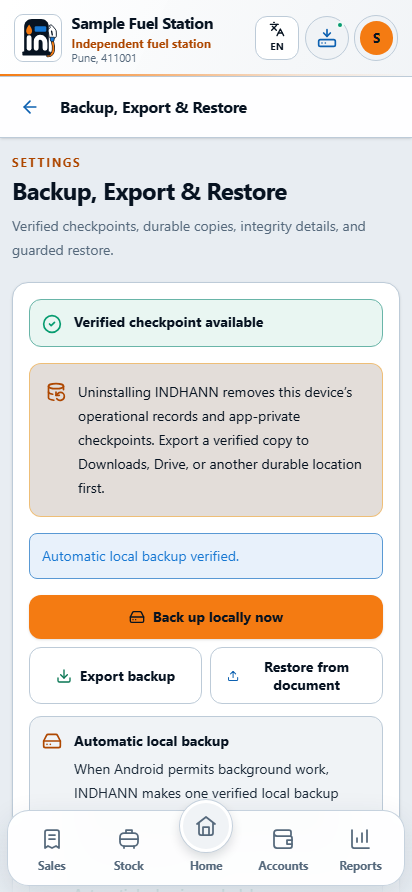
A backup is the file used to recover the operating workspace. Make one regularly and before an app update, phone move, uninstall, reset or large correction. A receipt or report PDF is not a database backup.

  1. Open Backup, export & restore, or the backup shortcut at the top of the app.
  2. Choose the manual backup/export action and wait for the archive to be prepared and verified.
  3. Save or share the backup to an owner-controlled location outside the app's private storage. Complete the file manager/share app's final step.
  4. Locate the exported file and check its date/name. Keep a second protected copy where a lost or damaged phone cannot destroy both copies.
  5. Record when and where you stored it. Keep older known-good copies until the newer backup is checked.

What the archive includes

The verified operational archive includes saved station records and, in the current backup format, the Android theme, POS/UPI labels and optional station logo. Unfinished drafts are not part of this backup. A backup does not transfer account credentials or extend a Trial/subscription.

Protect backups as confidential station information. Do not send one to a fuel customer as a statement or attach it to a general support email unless a specific, appropriate support process requires it.

INDHANNSTATION OWNER HANDBOOK

Recognise the screen. Check your next step.

Settings → Backup, export & restore

A completed local checkpoint is useful; an owner-exported copy is a separate step.
A completed local checkpoint is useful; an owner-exported copy is a separate step.Real app layout · illustrative station recordsEnlarge app screen ↗

Your practice checklist

These checks help you learn. Ticking them does not save or verify any station record.

Check before you continue ↑
INDHANNSTATION OWNER HANDBOOK

21 Settings → Backup, export & restore

Restore records or move to a new phone

A new phone should continue the station’s history from a known point. Review which snapshot will replace its existing workspace before confirming.

  1. On the old phone, finish or deliberately leave unfinished entries, save the records, and export a verified backup. Keep that file safe.
  2. On the receiving phone, install INDHANN and sign in with the same station account. The new sign-in automatically replaces the previous phone.
  3. Before restoring over a phone with existing work, export its current records too. Restore replaces a snapshot; it is not a merge.
  4. Open Restore and select the intended backup file. Wait for the integrity and station-identity checks.
  5. Review the archive dates, record counts and replacement warning. Cancel if the station, date or contents are not what you intended.
  6. Confirm only after that review. Wait for the explicit successful result, then compare expected sales, customers, stock and reports before entering new work.

Rejected or cancelled restores

A rejected file has not been applied. Cancelling is not a successful restore. Use a valid, matching archive; do not rename or edit a broken file to bypass its integrity checks. A failed apply must not be treated as permission to erase the current workspace.

INDHANNSTATION OWNER HANDBOOK

Recognise the screen. Check your next step.

Settings → Backup, export & restore

Backup & Restore is the entry point for reviewing a recovery file before replacement.
Backup & Restore is the entry point for reviewing a recovery file before replacement.Real app layout · illustrative station recordsEnlarge app screen ↗

Your practice checklist

These checks help you learn. Ticking them does not save or verify any station record.

Check before you continue ↑
INDHANNSTATION OWNER HANDBOOK

22 Unfinished entry / Save state / Access

Handle interruptions without duplicates

A call interrupts an entry or the app closes before you finish. Check what was saved and what is only an unfinished draft before continuing.

Save an entry when it is complete. If you leave a dirty form, the app offers Keep editing or Discard changes. Choose deliberately: discarding a form is not the same as deleting a saved transaction.

Resume an unfinished entry

  1. If a recovery banner appears, open the matching form and choose Restore draft, Discard draft or Keep for later.
  2. Review every restored value, including all staged fuel-sale rows and the selected customer/nozzle.
  3. If committed records changed and recovery is blocked, inspect history first. Do not force stale values into a new transaction.
  4. Save once after review. A recovered draft becomes a transaction only when the save succeeds.

Draft recovery is local, limited to 24 hours and tied to the same account, station and installation. It is separate from backup. If draft storage is unavailable, follow the error and keep important values until you have a verified save.

Internet and restricted access

Sign-in, phone enrollment, Trial/access checks, plan management and private APK downloads need the server. A previously verified paid phone may have a limited offline allowance of up to 24 hours, subject to the device/clock/access checks. Trial access requires online verification. Offline allowance is not a promise of unlimited operation.

INDHANNSTATION OWNER HANDBOOK

Recognise the screen. Check your next step.

Unfinished entry / Save state / Access

An open sale form is unfinished work until a save succeeds; this screenshot is not a recovery-success message.
An open sale form is unfinished work until a save succeeds; this screenshot is not a recovery-success message.Real app layout · illustrative station recordsEnlarge app screen ↗

Your practice checklist

These checks help you learn. Ticking them does not save or verify any station record.

Check before you continue ↑
INDHANNSTATION OWNER HANDBOOK

23 Website / Account / Support

Manage plans and account access

A plan payment is pending while you need to start work. Check the verified account state before attempting another purchase.

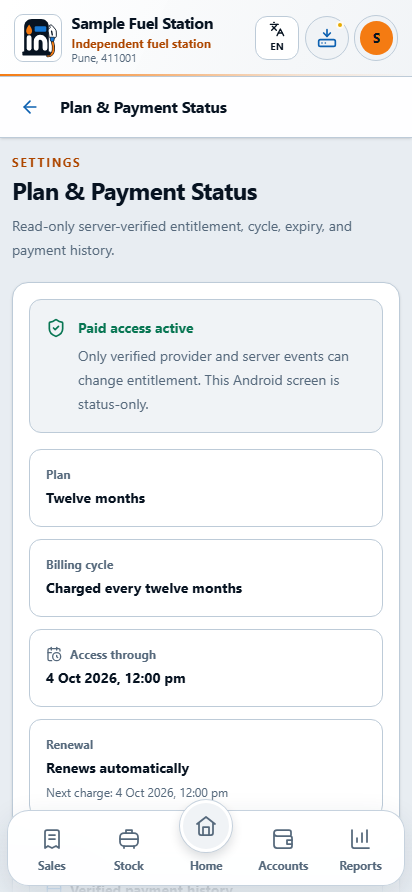
Use the website account for INDHANN billing. Android's plan section displays verified status and guides you to the account; it does not grant access merely because checkout opened.

Plan periodBase priceGSTTotal charged
1 month₹499.5018% · ₹89.91₹589.41
6 months₹2,499.5018% · ₹449.91₹2,949.41
12 months₹4,999.5018% · ₹899.91₹5,899.41
  1. Review the plan, total and recurring AutoPay terms before opening the payment page.
  2. Complete checkout in the provider flow. Return to the owner account and wait for server verification.
  3. If the result is uncertain or pending, use Check again and inspect payment history. Do not buy a second plan just because confirmation is delayed.
  4. For cancellation, use the website account's cancellation action and review the effective cycle end. Previously paid access follows the verified period; closing the browser does not cancel AutoPay.

Forgot password?

Use Forgot password and email indhanpetro@gmail.com from the registered address with the station name. Support verifies ownership. There is no public OTP or automated recovery-email flow, and support will never ask for or record your password. If a verified reset link is supplied, you choose the new password yourself.

INDHANNSTATION OWNER HANDBOOK

Recognise the screen. Check your next step.

Website / Account / Support

Android displays verified plan status; purchases and cancellation belong to the website account.
Android displays verified plan status; purchases and cancellation belong to the website account.Real app layout · illustrative station recordsEnlarge app screen ↗

Your practice checklist

These checks help you learn. Ticking them does not save or verify any station record.

Check before you continue ↑
INDHANNSTATION OWNER HANDBOOK

24 Closing routine / Troubleshooting

Close the day with confidence

The last vehicle leaves. Close the records in the same order the day unfolded: readings, money, stock, customer documents, then a recoverable copy.

Daily closing checklist

  • Confirm every nozzle's closing reading and all intended staged entries are saved.
  • Reconcile Cash, Card, UPI and Credit with the actual collections and source records.
  • Check tanker inward, stock adjustments, lubricant sales and credit collections for duplicates or omissions.
  • Review the same period in Reports and resolve unexplained differences.
  • Create the required customer documents and verify the recipients.
  • Export and locate the latest backup outside the app.
What you seeWhat to do
Sale will not saveCorrect the highlighted field, readings, stock or payment split. Keep the retained entry; inspect history before recreating it.
Records seem missingCheck station, record year, month, search and phone. Other phones do not sync into this one.
Previous phone signed outA newer Android sign-in replaced it. Use the active phone, or sign in again to make this phone active. Restore a verified backup to move records.
PDF not receivedOpen the generated file, verify it, then complete Save/Send in the chosen Android app.
Backup rejectedUse the original valid archive for this station. Do not overwrite the current workspace with an unverified file.
Payment pendingUse Check again and payment history. Avoid repeating the purchase while verification is uncertain.

For help, send the registered email, station name, app version, action attempted and the exact error to indhanpetro@gmail.com. Never include passwords, OTPs, full payment credentials or another customer's private document.

Keep this guide with your operating procedure. Read the product brochure for the short overview and the current website policies for commercial terms.

INDHANNSTATION OWNER HANDBOOK

Recognise the screen. Check your next step.

Closing routine / Troubleshooting

Return to the working-day overview after reconciling the source registers.
Return to the working-day overview after reconciling the source registers.Real app layout · illustrative station recordsEnlarge app screen ↗

Your practice checklist

These checks help you learn. Ticking them does not save or verify any station record.

Check before you continue ↑