
 Product brochure · 2026
FOR THE OWNER BEHIND EVERY SHIFT
The pump keeps moving.
Keep your records with it.
Morning readings. A tanker at the gate. A customer buying on credit. The final cash count. INDHANN brings the records behind your working day into one Android workspace.
A queue forms just as a driver asks for his balance. By evening, the small details are the hardest to remember. Capture each event while it is still clear.
From the first reading to the saved backup
- Record sales and payment splits
- Follow stock, customer credit and money entries
- Review receipts, reports and your own backup
English · हिंदी · मराठी
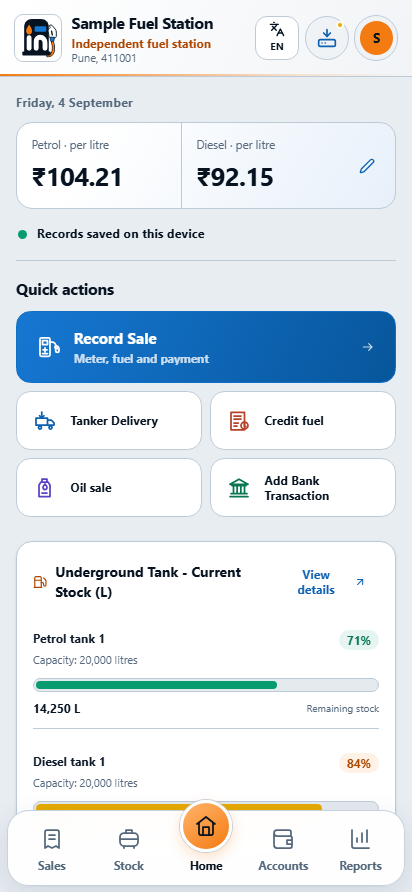
Your station work stays on Android. Your account, plan and app download live on the website.
Detailed user guide ↗Open the dayBEFORE THE FIRST SALE
Open with readings you trust.
Yesterday’s closing meter is today’s starting point. A few deliberate checks stop a small mismatch from following the whole day.
Home → fuel rates · Profile → Settings
Set up your real station
Add each tank, its fuel, capacity and opening stock. Link every nozzle to the correct tank and enter its actual starting meter.
Check the day before recording
Review the working date, fuel rates and opening readings. Capacity, tank stock and nozzle meter are different values.
Choose the next action
Home offers Record Sale, Tanker Delivery, Credit fuel, Oil sale and Add Bank Transaction.
A new workspace needs your actual setup. Stock is calculated from saved records; it is not a live tank sensor.
Step-by-step instructionsRecord salesDURING THE RUSH
The sale is more than a meter reading.
One vehicle pays cash, the next pays by UPI, and a regular customer takes credit. Record the litres and where the bill belongs together.
Sales → Record Sale
Choose nozzle and readings
Check the date, nozzle, opening meter and actual closing meter. Enter testing fuel only when testing occurred and fuel returned to the tank.
Allocate the complete bill
Record the actual cash, UPI/POS, other payment or credit split. Select a saved Credit Customer for the credit amount.
Review, save, then share
Review all staged nozzle entries. Wait for the successful save before opening or sharing the receipt.
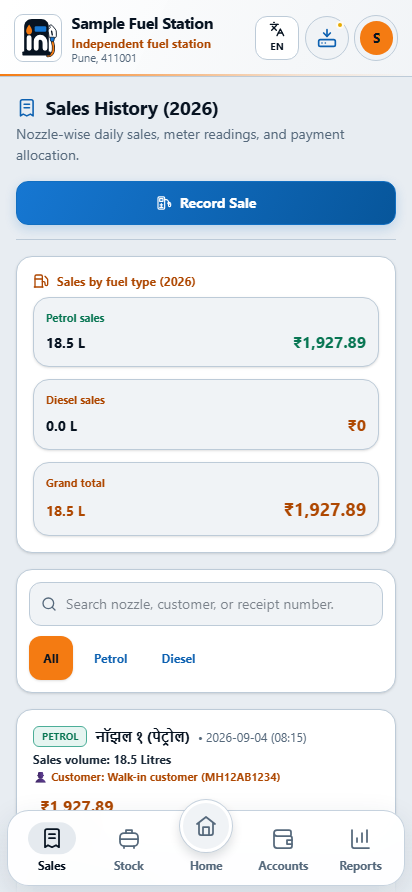
Avoid entering the same sale again while it is saving. If saving fails, keep the form, correct marked fields and retry after checking the saved history.
Step-by-step instructionsReceive stockTHE TANKER ARRIVES
Receive stock with a clear trail.
A delivery should explain why stock increased. A lubricant sale should explain why a box or bottle count changed. Keep the source beside the quantity.
Stock → Tank & tanker · Lubricants
Record the actual delivery
Enter delivery details and compartment quantities, assigning each compartment to the correct underground tank.
Review the result before saving
Check current quantity, incoming litres, expected stock and tank capacity. Resolve a warning using the real delivery facts.
Keep lubricant units explicit
Set bottles per box, sealed boxes, loose bottles and prices. Choose Bottle or Box when selling and review the remaining stock.
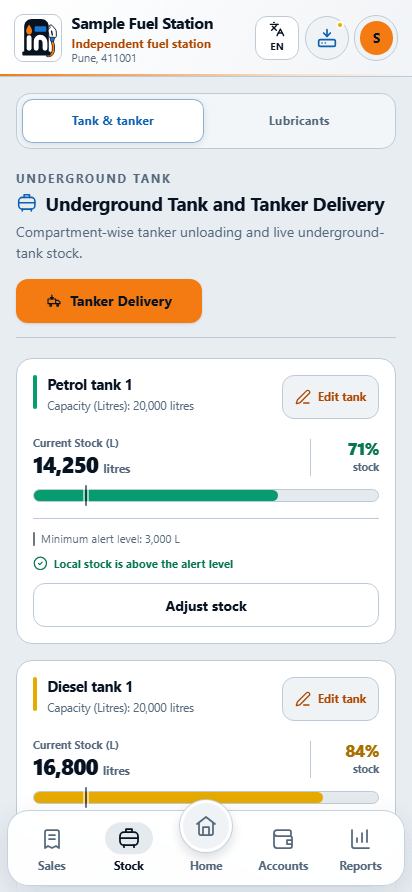
Changing a tank name or capacity is not a delivery. INDHANN uses the quantities you enter; it does not read tanker or dispenser hardware.
Step-by-step instructionsFollow credit“WHAT IS MY BALANCE?”
Answer from a record, not memory.
Credit given and money received are two different events. Keeping both visible makes the next conversation with a regular customer simpler.
Accounts → Credit · Bank ledger
Choose the right customer
Create or select the Credit Customer. Record the actual credit fuel bill with the customer and vehicle details you need.
Record the later payment
When the customer pays, enter the amount and method against that customer. Check the updated balance and receipt.
Review money entries separately
Use Bank ledger for the actual cash/bank movement. Review its direction, date and amount instead of assuming a bank connection.
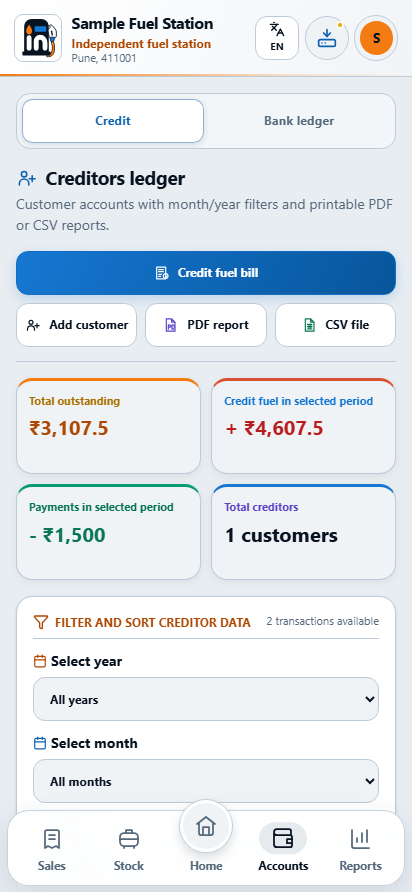
Money recorded as received is not proof of bank settlement. Match your cash and payment-provider evidence before recording or correcting an entry.
Step-by-step instructionsClose the dayBEFORE YOU CALL IT A DAY
Close with the numbers in front of you.
The final cash count should not depend on reconstructing the shift. Compare the saved day with the evidence at your desk, then prepare the report you need.
Home → Daily Sales · Reports
Review the working day
Check Petrol, Diesel, Total and the payment allocation on Home. Use the daily slip for a compact record.
Investigate a difference
Compare cash, UPI/POS evidence, credit, payments and expenses. Open the original record and use the supported correction flow.
Choose the reporting period
Select the correct record year and month. Export a readable PDF for sharing/printing or CSV for further analysis.
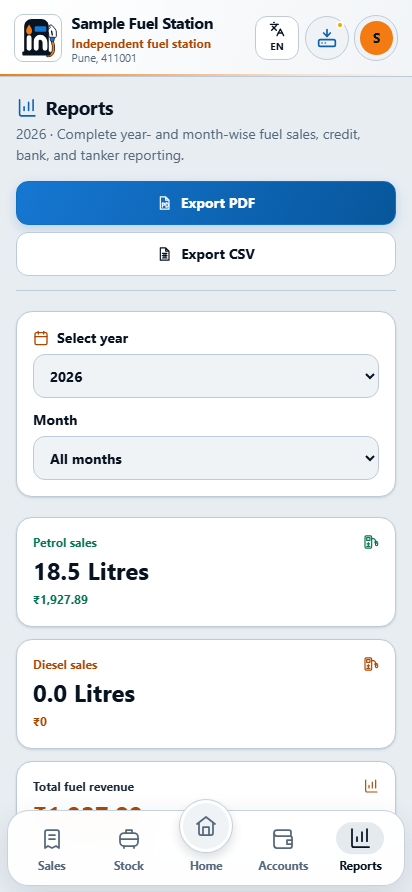
A report reflects the records and filters selected. Check missing or incorrect entries separately. A report is not a backup archive.
Step-by-step instructionsProtect recordsTHE LAST IMPORTANT JOB
Make tomorrow recoverable.
A saved day on the phone and a recoverable copy outside it are different things. Protect your work before an update, repair or phone change.
Header Backup · Profile → Settings
Create and keep your backup
Use Backup, Export & Restore. Export the verified archive somewhere you control and can find outside this app.
Check before you restore
Review the intended archive, verification and replacement summary. Preserve current records first. Restore replaces a snapshot; it does not merge histories.
Keep your preferences together
Version 2 backups include the Android Light/Dark theme, POS/UPI labels and optional station logo. The logo appears on your documents.
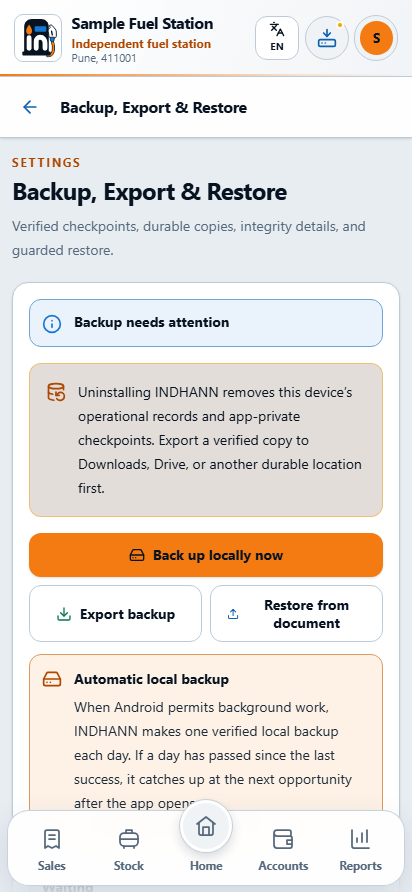
Different accounts on one installation keep separate local records. Operational records, reports, backups and the optional station logo stay on Android unless you export them.
Step-by-step instructionsGet startedSTART WITH YOUR NEXT WORKING DAY
One account. Two clear jobs.
Use the website to create your account and manage access. Sign in to Android with the same credentials to record the station’s work.
Create the owner account
Visit www.indhann.in. An eligible new station receives one server-timed three-day Trial without payment details.
Install your authenticated APK
Open the owner download area, review the version and checksum, and install the Android APK. The AAB is an operator artifact.
Set up, record, review, back up
Choose your language, enter real equipment and rates, save your first entry and export your backup.
Choose the period that fits your station
| Period | Base price | 18% GST | Payment total |
|---|---|---|---|
| Every month | ₹499.50 | ₹89.91 | ₹589.41 |
| Every 6 months | ₹2,499.50 | ₹449.91 | ₹2,949.41 |
| Every 12 months | ₹4,999.50 | ₹899.91 | ₹5,899.41 |
All payment totals include 18% GST. Plans use Razorpay AutoPay until cancelled. Manage payments and cancellation on the website. Paid access begins only after verified provider/server confirmation.
When you need help
Forgot password starts with email support and ownership verification. Never send or record a password.
indhanpetro@gmail.comOwner-account and legal pages currently use English. The brochure, operating guide and Android workspace are available in English, Hindi and Marathi.
Open the detailed operating guide ↗